How to Dictate Emails in Gmail on Mac and Windows (Without Typing Every Word)
Learn how to dictate Gmail emails on Mac and Windows with built-in tools or Loqua, then format and refine your draft with your voice.
Writing an email is rarely just about getting words onto the screen. You have to organize your thoughts, choose the right tone, and make sure your message is clear before hitting Send. Even a short reply can take longer than expected, especially when you're working through a crowded inbox.
Voice typing offers a simpler way to get started. Instead of typing every sentence, you can speak your message directly into Gmail and edit it afterward. With AI-powered dictation, you can also turn natural, sometimes messy speech into a more polished draft.
In this guide, we'll show you how to dictate emails in Gmail on both Mac and Windows. We'll start with built-in dictation tools, using macOS as our main example, then explore how Loqua helps turn natural speech into clear, well-structured emails across both desktop platforms.
Can You Use Voice Typing in Gmail on Your Computer?
Yes. You can dictate emails directly in Gmail on both Mac and Windows without installing a browser extension.
Both operating systems offer built-in speech-to-text tools. On a Mac, macOS Dictation lets you speak into a text field, including the body of a Gmail message, and converts your words into written text. Windows offers a similar voice typing feature.
However, speech recognition and email writing are not quite the same thing.
Traditional dictation is designed primarily to capture what you say. It can recognize speech, insert punctuation, and help you write without a keyboard. But a transcript may still need editing before it sounds like a professional email, especially when longer messages lack clear paragraph breaks or logical structure.
Loqua goes a step further. It can remove filler words, reduce repetition, organize sentences, and help adjust your writing without requiring you to start over. Instead of spending extra time cleaning up a rough transcript, you can focus on the message you actually want to send.
Both approaches work with your existing Gmail workflow. The key difference is how much editing you need to do afterward. Let's take a closer look at built-in dictation, using Mac as our main example, before exploring how Loqua works across both desktop platforms.
Method 1: Use Built-in Dictation Tools in Gmail
To demonstrate how built-in voice typing works on a computer, we'll use macOS Dictation as an example.
To use it in Gmail:
- Open System Settings > Keyboard > Dictation and turn on Dictation.
- Open Gmail and click Compose.
- Activate Dictation using your configured shortcut and start speaking.
- Review the transcription, make any necessary corrections, and send your email.
To see how well this works in practice, we tested macOS Dictation by speaking a longer email directly into Gmail. However, the result was less than ideal, as shown below.
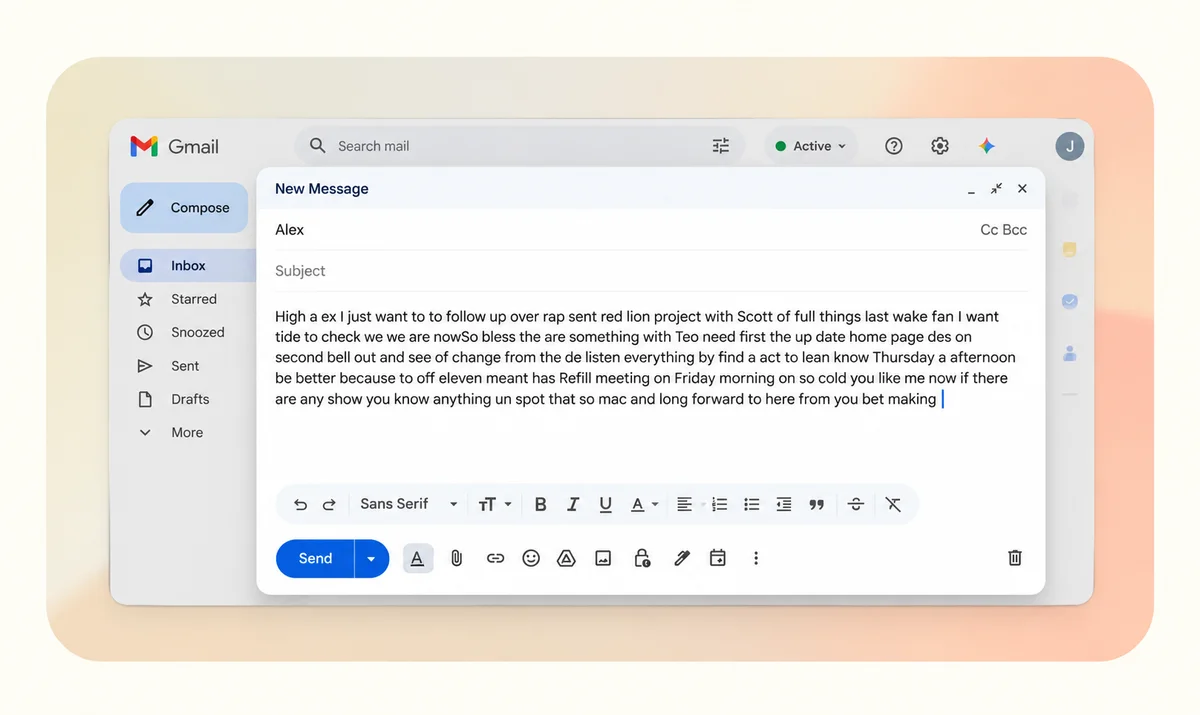
While macOS Dictation works well for short messages, it doesn't automatically organize your speech into well-structured emails. Longer dictation can result in large blocks of text without clear paragraph breaks or logical formatting. You'll often need to manually divide paragraphs, reorganize ideas, and polish the wording before sending.
That's where Loqua makes a difference. Available on both Mac and Windows, Loqua goes beyond basic transcription to help turn natural speech into clearer, better-structured emails with less manual editing.
Method 2: Dictate and Format Gmail Emails with Loqua
Unlike traditional dictation tools that primarily convert speech into text, Loqua turns natural speech into clear, well-structured writing by removing filler words, handling self-corrections, and automatically organizing content into paragraphs or lists.
Available on both Mac and Windows, Loqua works directly in your desktop applications, including Gmail. To get started, simply download Loqua from its official website, sign in, and grant the necessary permissions. Once set up, you can activate Loqua using your chosen keyboard shortcut and start dictating.
Step 1: Dictate Your Email Directly in Gmail
Open Gmail, click Compose, and place your cursor in the email body. Activate Loqua and start speaking naturally.
There's no need to carefully dictate every comma or paragraph break. Simply explain what you want to communicate, just as you would in a conversation.
Loqua can automatically:
- Remove filler words and repetitions to keep your message concise.
- Recognize self-corrections so abandoned phrases don't clutter your draft.
- Organize paragraphs and lists based on the structure of your speech.
- Refine wording to make your message clearer and easier to read.
To compare the results, we used the same spoken email from our macOS Dictation test, this time with Loqua.
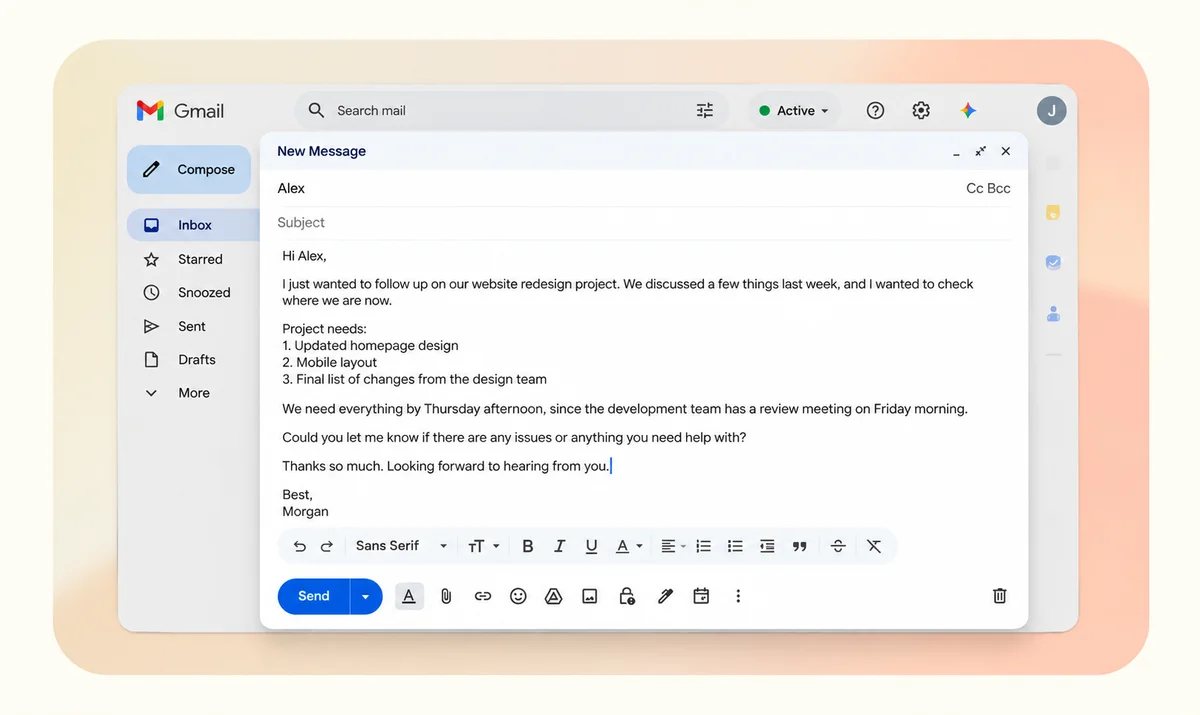
Rather than leaving you with a raw transcript that requires extensive cleanup, Loqua helps produce a more structured email draft directly where you're writing.
Step 2: Refine Your Email with Voice Commands
Need to adjust the tone or make your email more concise? Loqua's Speak to Edit feature lets you select text and give spoken editing instructions, such as "Make this more professional" or "Shorten this paragraph."
Instead of rewriting everything manually, you can use your voice to refine the selected text, then review the changes before sending your email.
Whether you're using a Mac or Windows PC, Loqua helps you move from natural speech to a structured, polished email without switching between multiple tools.
How to Write Better Emails with Voice Typing
Whether you're using built-in dictation on your computer or an AI voice typing tool like Loqua, a few simple habits can help you write clearer, more effective emails.
1. Start with Your Main Point
Before you start speaking, think about what you want the recipient to know or do. Instead of explaining all the background first, begin with the purpose of your email.
For example, you might say, "I'm following up on the revised proposal and would like to confirm the timeline."
You can add supporting details afterward. This keeps your message focused and makes it easier for the recipient to understand.
2. Speak Naturally, One Idea at a Time
You don't need to slow down or carefully dictate every sentence. Speak at your normal pace, but try to express one complete thought before moving to the next.
AI voice typing tools like Loqua can help organize your speech into readable paragraphs, so you can focus on communicating your ideas rather than worrying about formatting.
3. Double-Check Important Details
Even with accurate speech recognition, names, dates, numbers, and technical terms can occasionally be misinterpreted.
Before sending, check that all important information is correct, especially deadlines, recipients, and specific requests.
4. Review Your Email Before Sending
Voice typing can make drafting and editing faster, but the final message still deserves a quick review.
Make sure the tone is appropriate, the information is accurate, and the recipient understands what action to take next. A brief final check helps prevent unnecessary follow-up emails.
Built-in Dictation vs. AI Voice Typing: Which Is Better for Gmail?
Both built-in dictation and AI voice typing tools can help you write Gmail emails without relying entirely on your keyboard. However, they serve different needs.
Built-in dictation is a convenient option for short, straightforward messages. It requires no additional software and works well when you simply want to turn speech into text. However, longer emails may require manual formatting, restructuring, and editing.
Loqua, on the other hand, is designed for workflows that go beyond basic transcription. By removing filler words, handling self-corrections, and organizing spoken ideas into structured text, it helps reduce the effort of turning a rough transcript into a polished email. Its Speak to Edit feature also allows you to refine selected text through voice commands.
The choice comes down to your workflow. If you occasionally dictate a quick reply, built-in dictation may be enough. But if you regularly write detailed emails, follow up with clients, or manage professional communication, AI voice typing can make the entire process more efficient.
The real difference isn't just how quickly you can speak. It's how much work remains after you finish speaking.
Write Emails at the Speed of Thought
Writing emails doesn't have to mean spending minutes typing, formatting, and rewriting every sentence.
While built-in dictation offers a convenient way to turn speech into text, Loqua goes further by transforming natural speech into clear, well-structured emails. From organizing your thoughts to refining your wording with voice commands, it helps make email writing feel less like a task and more like a conversation.
Whether you're using Gmail on Mac or Windows, Loqua lets you focus on what you want to say, rather than how to type it.
Try Loqua for free and discover a simpler way to write emails with your voice.
Frequently asked questions
Yes. Loqua supports both macOS and Windows, allowing you to dictate and edit text across compatible desktop applications. You can use the same core voice typing features on either platform.
Yes. Loqua works with most desktop apps and text fields, including Google Docs, Notion, Slack, and other writing tools. You can dictate directly where you're working without constantly switching between applications.
Yes. Unlike basic speech-to-text tools, Loqua can recognize the structure of your spoken ideas and organize them into paragraphs, bullet points, headings, or lists when appropriate. You don't need to dictate every formatting command manually.
Yes. Loqua's Speak to Edit feature lets you select existing text and give spoken instructions to rewrite, shorten, expand, or change its tone. This is useful for editing emails, documents, notes, and other written content without retyping everything.
Yes. Loqua supports AI-powered voice translation, allowing you to speak in one language and generate written text in another. This can be useful for multilingual communication, international work, and writing in a language other than your native one.
Speech recognition tools can occasionally misinterpret unfamiliar names, acronyms, or specialized vocabulary. Loqua includes a personal dictionary where you can add frequently used names and technical terms to improve recognition.
No. Loqua helps you compose and edit text, but it doesn't automatically send your Gmail drafts. You remain in control of reviewing and sending your messages.
Yes. Loqua offers a free plan with 5,000 words of dictation per week, along with a 14-day Pro trial for new users. You can get started without providing a credit card upfront.
Privacy depends on the tool you use. According to Loqua's privacy documentation, your voice, text, and other content are not used to train AI models, and your history is stored locally on your device. Loqua does require an internet connection to process speech and other AI requests.